Imagine launching a high‑end title on a budget laptop, a tablet on a commuter train, or even a smart TV in the living room, and seeing the same frame‑rate you’d expect from a dedicated console. That’s the promise of cloud gaming today: a consistent, hardware‑agnostic experience that lets you pick up where you left off, no matter the device.
Step 1 – Choose a Service with Real‑World Performance Data
Start by looking at latency numbers that matter. Services such as Nvidia GeForce Now, Xbox Cloud Gaming (formerly xCloud), and Amazon Luna publish average ping times for major markets. For example, GeForce Now reports 20‑30 ms latency in the U.S. Midwest on a 100 Mbps fiber connection, while Luna lists 35‑45 ms on the same network. Anything above 60 ms can cause noticeable input lag in fast‑paced shooters.
Check the supported resolution and frame‑rate. Most providers cap at 1080p/60 fps, but a few, like GeForce Now “RTX 30 Series” tier, push 1440p/60 fps on compatible hardware. If you own a 4K TV, verify whether the service offers upscaling or native 4K streams—currently a rare feature limited to a handful of titles.
Step 2 – Verify Your Internet Requirements
Cloud gaming is essentially video streaming, so bandwidth is the first gatekeeper. A minimum of 15 Mbps download is required for 720p/60 fps, while 25 Mbps is recommended for 1080p/60 fps. Upload speed matters less, but staying above 5 Mbps helps maintain stable connections during multiplayer sessions.
Run a speed test at the time you plan to play. Many users discover that peak‑hour congestion drops their speeds by 30 %—enough to cause buffering. If you can’t guarantee a steady line, consider a wired Ethernet connection; it reduces jitter compared to Wi‑Fi, especially on the 2.4 GHz band.
Step 3 – Set Up Your Device and Controller
Most cloud platforms support Windows, macOS, Android, iOS, and Chrome OS. Download the official app, sign in, and run a quick hardware check. The app will alert you if your device’s GPU is insufficient for local decoding, which can cause stutter.
Pair a compatible controller—Xbox Series X|S, PlayStation 5 DualSense, or a certified Bluetooth gamepad. The latency added by Bluetooth is typically under 5 ms, negligible compared to network latency. If you prefer keyboard and mouse, verify that the game you intend to play supports it; many titles only accept controllers.
Step 4 – Manage Your Game Library Wisely
Cloud services don’t host every title. Check the catalog before you subscribe. As of early 2024, GeForce Now offers roughly 850 games, Luna about 500, and Xbox Cloud Gaming integrates with the Game Pass library of over 400 titles. If you have a niche indie favorite, confirm its presence; otherwise you’ll need a local copy.
Take advantage of cross‑save features. Many services sync progress to the cloud automatically, so you can start a game on a laptop, continue on a phone, and finish on a TV without manual file transfers.
Common Mistake – Ignoring Data Caps
Streaming games can consume 7‑10 GB per hour at 1080p/60 fps. Users on metered plans often exceed their monthly limits within a few weeks, leading to throttled speeds or extra charges. Before you dive in, review your ISP’s data policy and set a usage alert if possible.
Step 5 – Explore the Broader Entertainment Landscape
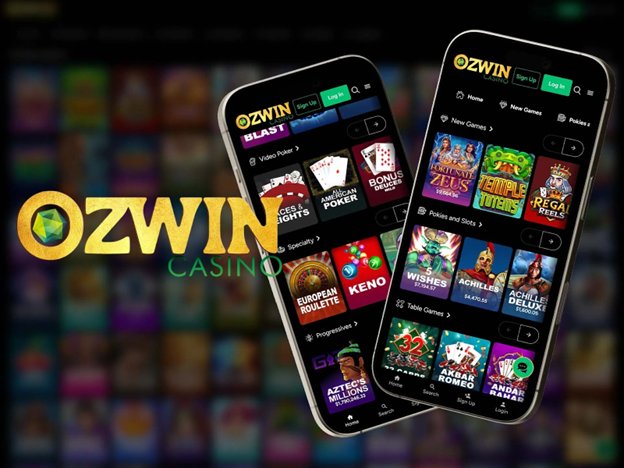
While you’re testing the limits of cloud gaming, you might also notice how the same streaming tech powers other forms of digital entertainment. Platforms that deliver movies, music, and interactive experiences often share the same infrastructure, creating a seamless ecosystem for on‑demand content. One such service, ozwin, illustrates how streaming can bridge traditional gaming with broader online leisure activities.
Step 6 – Optimize for Long‑Term Use
Schedule regular updates for your router firmware; manufacturers frequently release patches that improve QoS (Quality of Service) settings, prioritizing gaming traffic. Enable “Gaming Mode” if your router supports it, which can reduce latency by up to 15 %.
Consider a backup plan. If your primary ISP experiences an outage, a mobile hotspot with at least 20 Mbps LTE can keep you in the game, albeit with higher latency. Keep the hotspot’s data plan in mind—streaming will eat through it quickly.
Wrap‑Up: Make Cloud Gaming Work for You
The rise of cloud gaming isn’t a fleeting trend; it’s reshaping how developers distribute games and how players access them. By checking latency, confirming bandwidth, pairing the right controller, and staying aware of data limits, you can turn a modest internet connection into a high‑performance gaming hub. Follow these steps, avoid the common data‑cap pitfall, and you’ll enjoy a truly portable library without the expense of a high‑end PC or console.